
Customize Level Up Messages
Learn how to make Lurkr's level-up messages reflect your server's personality.
Guide
Customizing the Level Up Message
If you find the current Level-Up message to not suit your server style, or you simply want to spice it up a little, you can completely customize it!
You can also use Embed Messages to congratulate your members!
Currently we only support configuring embed messages in the dashboard.
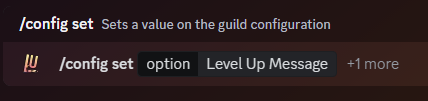
This will then open a modal dialog box, in which you can then type and send-off your written out level-up message! When you're done, and are sure that the message is within the 1,800 character limit, click on the submit button!
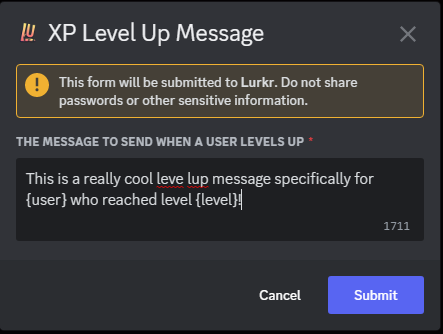
There are several tags you can include in your Level-Up message. These parameters will be replaced with the appropriate information when the Level-Up message is sent.
You must include the {} brackets in your message for the tags to show up!
| Information | Parameter |
|---|---|
| User Mention (@User) | {user} |
| User Profile Picture (🖼️) | {user.avatar} |
| User Tag (User#1234) | {user.tag} |
| User Discriminator (1234) | {user.discriminator} |
| Username (User) | {user.username} |
| User ID (99787644430475264) | {user.id} |
| Server Name (My Cool Server) | {guild.name} |
| Server Name (My Cool Server) | {guild} |
| Server ID (493351982887862283) | {guild.id} |
| Server Icon Picture (🖼️) | {guild.icon} |
| Level Reached (5) | {level} |
| Total XP Gained (30,183) | {xp} |
| Role Reward Gained (Level 10) | {roleRewardNames} |
| Role Reward Gained (@Level 10) | {roleRewardMentions} |
{roleRewards} is also available as a legacy alias for {roleRewardNames}.
Conditional Variables
You can show or hide parts of your level up message depending on certain conditions. There are two flavours:
- Toggle on a variable – show text only when a variable has a value (or only when it doesn't).
- Match a specific level – show different text depending on which level the user reached.
Toggle on a variable
Wrap the section you want to conditionally show in {#variable}…{/variable}. The text inside will only appear if the
variable has a value.
{#roleRewardNames}You gained the {roleRewardNames} role rewards!{/roleRewardNames}In this example the "You gained…" line only shows up when the level the user reached actually has role rewards attached. On levels without role rewards, the whole section is hidden.
Use {^variable}…{/variable} for the opposite check — the text inside is shown when the variable is empty.
{#roleRewardNames}You gained the {roleRewardNames} role rewards!{/roleRewardNames}
{^roleRewardNames}Keep grinding to unlock a role reward!{/roleRewardNames}
Match a specific level
You can write different messages for different levels using {#level.N}…{/level.N}, where N is the level you want to
match. The section is only rendered when the user reaches exactly that level.
{#level.10}🎉 You hit level 10! Welcome to the club.{/level.10}That line only appears on the level-10 announcement — at every other level it's left out. Blocks like this add text at a specific level; anything you write outside them always shows, so they don't replace the rest of your message.
To show a different message on the other levels, add the inverted form {^level.N} — it shows only when the level
isn't N:
{#level.10}🎉 {user}, you hit level 10! Welcome to the club.{/level.10}
{^level.10}{user} just leveled up to **level {level}**!{/level.10}
Level 10 gets the first line; every other level gets the second.
Multiple levels with their own messages
To handle several levels, just stack them one after another. Each section is independent:
{user} just leveled up to **level {level}**!
{#level.10}🎉 You hit level 10! Welcome to the club.{/level.10}
{#level.25}🏅 25 already? You're flying.{/level.25}
{#level.50}🚀 Halfway to 100 — keep going!{/level.50}
{#level.100}👑 You made it to 100. Legend status unlocked.{/level.100}
On level 10 the user sees the base message plus the level 10 line. On level 25, the level 25 line. On any level that isn't in the list (1, 5, 99, …) only the base message is sent.
Defaults: the easy way
If you're happy to always include a base line and only add extra text at specific levels, the example above is all you need. The base line lives outside the conditional sections, so it's shown every time.
A different "default" message for everything else
If instead of an always-present base line you want a separate fallback message that only shows when none of your
special levels matched, you need to combine the negative form {^level.N}…{/level.N} for each level you've
configured. The fallback only renders when none of those conditions are true, so the {^…} sections must be nested
inside each other:
{#level.10}🎉 You hit level 10!{/level.10}
{#level.25}🏅 25 already?{/level.25}
{#level.50}🚀 Halfway to 100!{/level.50}
{^level.10}{^level.25}{^level.50}{user} just leveled up to **level {level}**!{/level.50}{/level.25}{/level.10}
Read the last line as: "if the level is not 10, and not 25, and not 50 → show this default message".
Easy to get wrong
Every {^level.N} needs a matching {/level.N} and they must be nested, not chained. The closing tags appear
in reverse order of the opening tags, exactly like brackets. If a level is missing from the chain, its announcement
will show both the matched message and the fallback.
This number-matching syntax is limited to {level} here (and {milestone} in milestone messages) — they're the only
placeholders Lurkr can match against a specific number, so something like {#xp.1000} won't work. On milestones you'd
write {#milestone.1000}…{/milestone.1000}; see the
Milestones guide for details.
Setting the Level Up Message Destination
By default Lurkr will simply send the Level-Up message in the same channel where the user who Leveled-Up last spoke in, but this can sometimes be intrusive and can disrupt normal conversation.
Not to worry though, as you can set where Lurkr will send the Level-Up message. To set this up, simply type the following command:
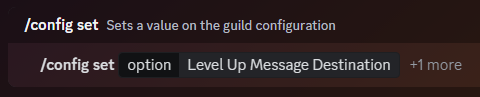
The command will reply with a select menu, asking you to select where to send the level up announcement to.
Unless you are selecting a custom channel, simply select an option from the drop-down menu.
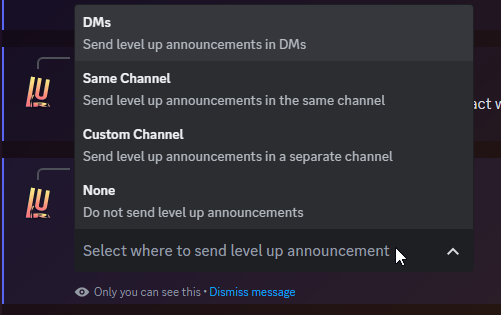
If you are selecting a custom channel, you must choose the optional slash command option values and in the option
field enter the custom channel you want to use.
When to send the Level Up Message
By default, Lurkr will send the Level-Up message after every level increase no matter what. However, you can also configure the bot to send the message at different times and for different reasons/levels.
This first command lets you set exactly which levels should be announced and which shouldn't. You can include as many levels as you want, within reason.
Only these levels will then be announced, regardless of where the level-up message will be sent.

The next command lets you set from what level on-wards you want the levels to be announced.
This means that any and all levels below this threshold won't be announced, but all of them including the minimum level will be announced.

The next command lets you set if you want levels to only be announced if they are a part of a multiple of a specific number.
For example if you only want to announce the levels 5, 10, 15 and so on, you would set this command to a multiple
of 5.

Lastly, you can also additionally toggle whether or not you want to announce only the levels that also have a Leveling Role attached to them.

All active announcement filters must be satisfied simultaneously (AND logic) for a level-up to be announced. If you have multiple settings enabled, a level must pass every check to trigger an announcement.
| Level Announcement Setting | What it checks |
|---|---|
| Minimum Level | The level must be at or above this threshold |
| Manually Set Levels | The level must be in the specified list |
| Only Leveling Roles | The level must have a role reward attached to it |
| Multiple (Factor) Of | The level must be a multiple of the specified number |
Because all active filters are combined with AND logic, setting specific levels 1, 2 & 3 together with a multiple of 5 would mean no levels are announced — since no level satisfies both conditions at once. Only use multiple announcement filters together when they are compatible.
Final Words
And that's it! You've successfully learnt how to customize level up messages!
If you need any more assistance with Lurkr, check out the rest of this documentation or join our support server to talk to an actual human!
Last updated on